

























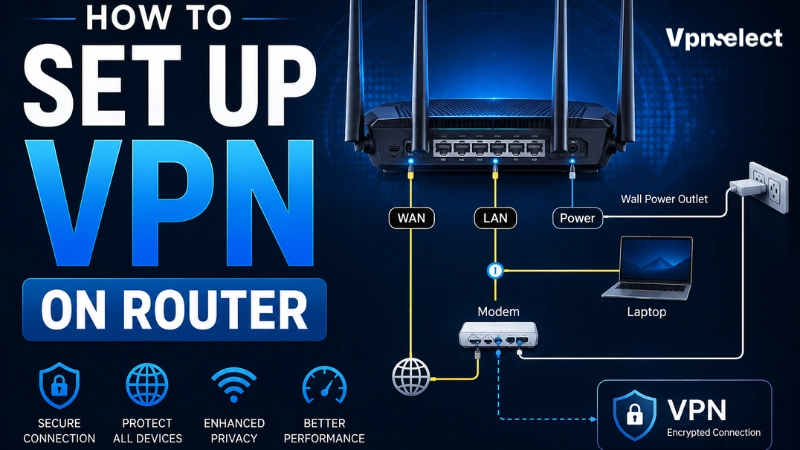
If you are searching for how to set up VPN on router, the first thing to know is that not every router supports it. You need a router with VPN client mode, compatible custom firmware, or a dedicated router app from your VPN provider.
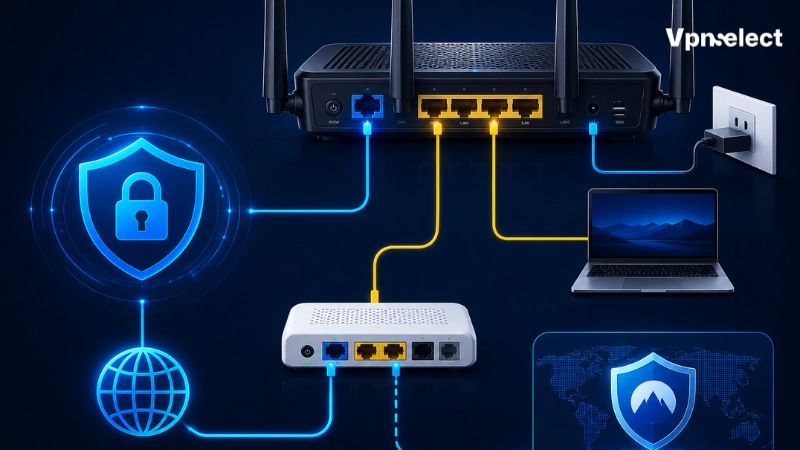
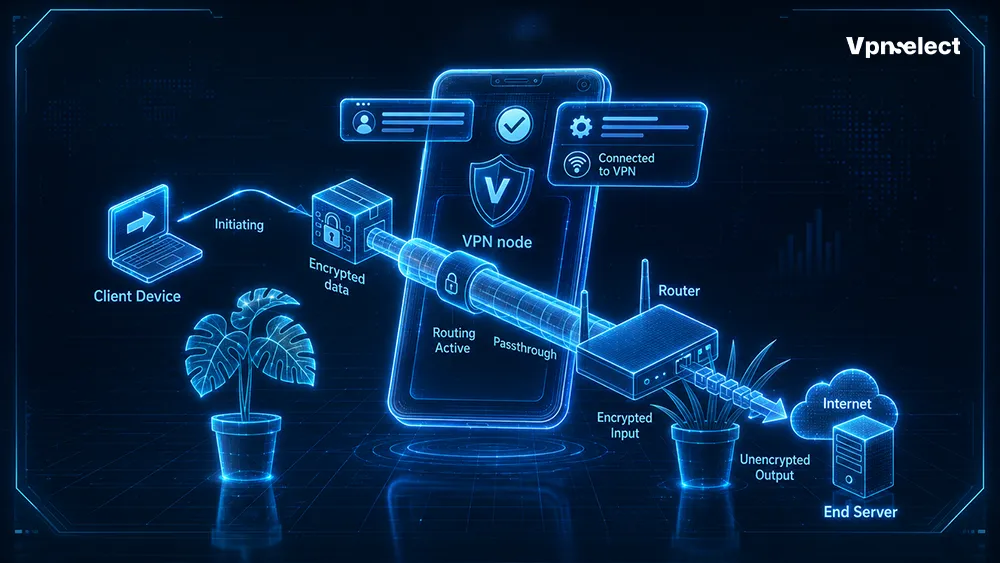
Learning how to set up a VPN on your router is useful if you want one VPN connection to protect your whole home network. Instead of installing a VPN app on every phone, laptop, smart TV, or game console, the router sends connected devices through an encrypted VPN tunnel.
This setup is helpful for devices that do not support VPN apps, but incorrect router settings can block your internet connection. This guide explains how to check compatibility, choose the right setup method, configure the VPN, test for leaks, and fix common problems.
Quick Answer: Can You Set Up a VPN on Any Router?
No. You can only set up a VPN on a router if it supports VPN client mode, compatible custom firmware, or a dedicated router app from your VPN provider.
Many ISP routers only provide basic Wi-Fi controls or VPN server settings. That is not the same as connecting your whole network to a commercial VPN service. If your router does not support VPN client mode, your options are to use a VPN-ready router, flash compatible firmware, or install VPN apps on individual devices instead.
Why Set Up a VPN on Your Router?
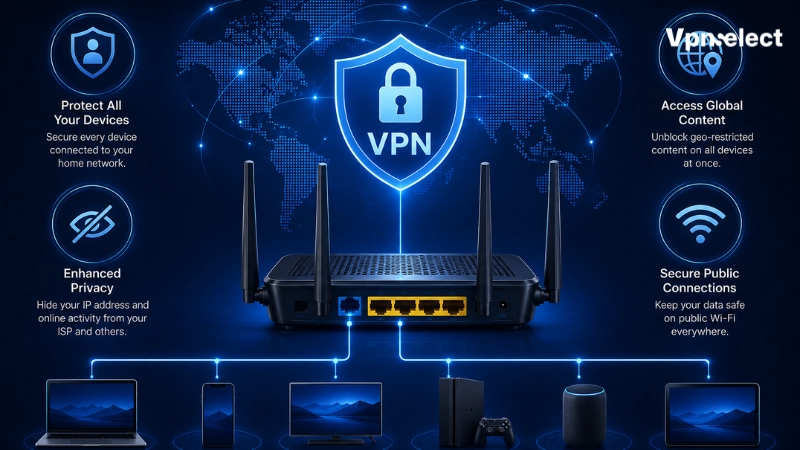
A router VPN can protect traffic from every device connected to that router. This may include phones, laptops, tablets, smart TVs, gaming consoles, streaming sticks, and some smart home devices.
The main benefit is whole-network coverage. You do not need to install or turn on a VPN app on every device. It can also help with devices that have no native VPN app, such as some smart TVs, consoles, or older streaming devices.
If you are still learning the basics, our VPN explained guide can help you understand how encryption and VPN server routing work before changing router settings.
VPN Client vs VPN Server on a Router
This is one of the most common setup mistakes. A VPN client and a VPN server are not the same thing.
A VPN client lets your router connect outward to a VPN provider. This is what you need if you want all home network traffic to pass through a commercial VPN.
A VPN server lets you connect back into your home network while away. That can be useful for remote access, but it does not automatically route your home internet through a VPN provider.
When checking your router, look for settings such as VPN Client, OpenVPN Client, WireGuard Client, or similar wording. If you only see VPN Server, your router may not support the setup you need.
What You Need Before You Start
Prepare these items before changing router settings:
- A VPN subscription that supports routers
- Your router model name and hardware version
- Router admin username and password
- VPN configuration files
- VPN server address
- VPN username and password
- A backup of your router settings
- A stable internet connection
- A phone with mobile data as backup access
That last point matters. If your router settings break Wi-Fi, you may need another connection to read support instructions or restore settings.
Check If Your Router Supports VPN
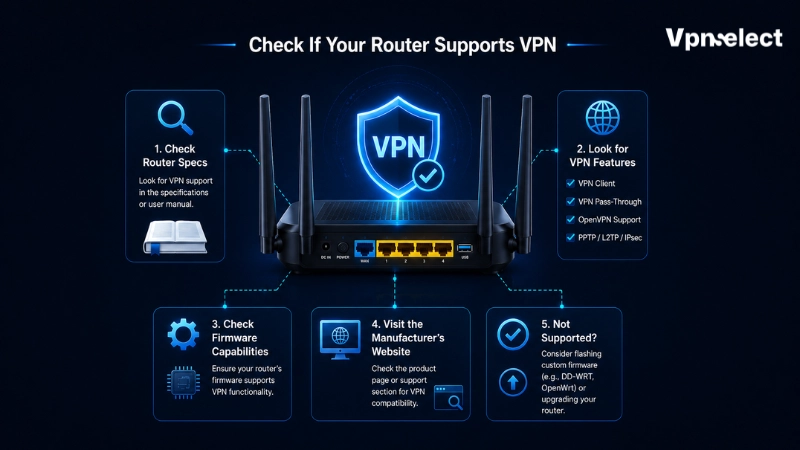
Log in to the router admin panel, usually through a local address in your browser. Look for VPN, VPN Client, OpenVPN, WireGuard, Advanced Settings, or Internet Settings.
If you only see VPN Server, your router may not support this setup. Search your router model plus “VPN client support” and check your VPN provider’s router setup page. If there is no official guide for your exact router or firmware version, do not force the setup.
Some routers support OpenVPN but not WireGuard. Others support VPN server mode only. The safest approach is to check the manual, the router manufacturer’s website, and your VPN provider’s router guide before changing anything.
Choose the Right Setup Method
|
Method |
Best For | Difficulty |
|
Built-in VPN client |
Routers with OpenVPN or WireGuard support | Medium |
|
Custom firmware |
Technical users with compatible routers |
Hard |
| Pre-configured VPN router | Beginners who want easier setup |
Easy |
| VPN app on devices | Users protecting only phones or laptops |
Easy |
The built-in VPN client is usually the best first option. Custom firmware gives more control but carries more risk. A pre-configured VPN router is easier, but it usually costs more. If you only need VPN protection on one or two devices, installing the VPN app directly is often simpler.
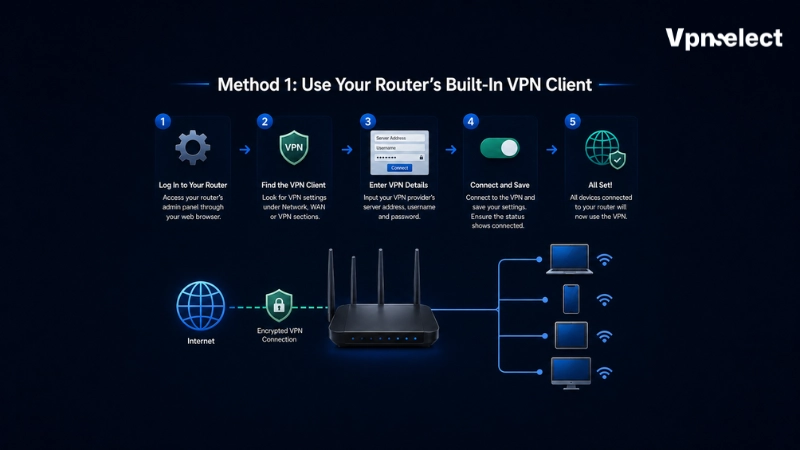
Method 1: Use Your Router’s Built-In VPN Client
Start by signing in to your router admin panel. Open the VPN Client section and create a new VPN profile. Choose the protocol your VPN provider supports, usually OpenVPN or WireGuard.
Next, download the configuration file from your VPN provider. For OpenVPN, this may be an .ovpn file. For WireGuard, it may be a configuration file or QR-based setup. Upload the file into your router interface if the router supports file upload.
Then enter the required details. These may include profile name, server address, port, protocol, username, password, certificate file, private key, or DNS settings. Some VPN providers use separate service credentials instead of your normal account password.
Choose a server location, save the profile, and click connect. If your router has an option such as “route all traffic through VPN,” enable it if you want every connected device to use the VPN. Restart the router if required.
After connecting, check your public IP address from a phone or laptop connected to Wi-Fi. If the IP location matches the VPN server, the basic setup is working.
Method 2: Install Custom Firmware Like DD-WRT or OpenWrt
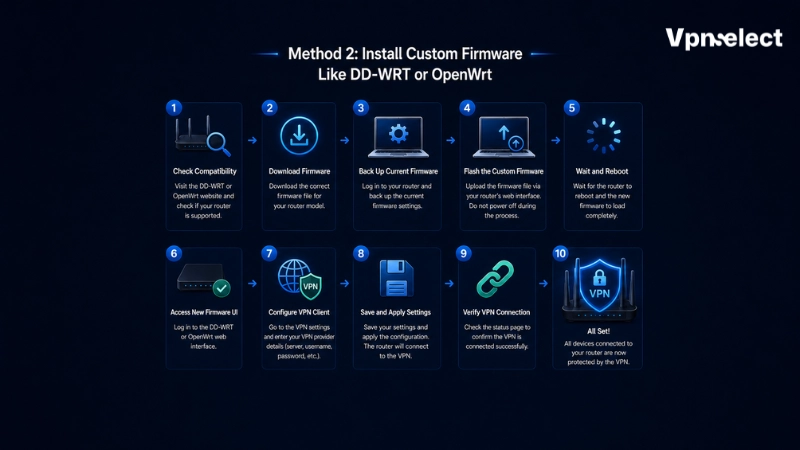
Custom firmware can add VPN client support to routers that do not include it by default. Common options include DD-WRT, OpenWrt, AsusWRT-Merlin, and Tomato.
This method is not for everyone. You must confirm that your exact router model and hardware revision are supported. Flashing the wrong firmware can break the router or make it difficult to recover. Backup your settings, download firmware only from official sources, and read the recovery instructions before starting.
If you are not comfortable with firmware recovery, choose a VPN-ready router or install VPN apps on your main devices instead.
Method 3: Use a Pre-Configured VPN Router
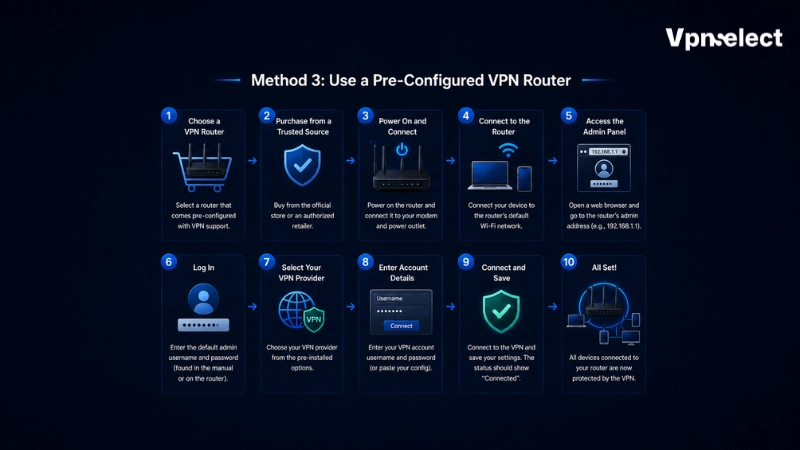
A pre-configured VPN router is the easiest option for beginners. These routers come with VPN support already installed or include a router app that makes server selection easier.
This option is useful if you want router-level VPN protection without editing configuration files. It also helps with smart TVs, streaming devices, and consoles.
If you only need VPN protection on a Firestick, you can follow this guide instead of changing the entire router.
How to Test If Your Router VPN Is Working
Do not rely only on the router status page. Test the connection from a device connected to the router.
First, connect a phone or laptop to Wi-Fi. Search “what is my IP” and check the location shown. It should match your VPN server, not your real ISP location.
Next, run a DNS leak test. If DNS requests still show your ISP, the VPN is not fully protecting traffic. Test more than one device, especially if your goal is to protect a smart TV, console, or streaming stick.
You should also disconnect and reconnect the VPN once to confirm the router recovers properly.
Common Router VPN Problems and Fixes
|
Problem |
Likely Cause | Fix |
|
Internet stops working |
Wrong config or DNS | Recheck VPN profile and DNS settings |
|
VPN connects but IP does not change |
Routing issue | Confirm devices route through VPN |
| Speed is slow | Router CPU, protocol, or server distance |
Use WireGuard or a nearby server |
| Streaming app fails | VPN server is blocked |
Try another server |
| Printer or NAS stops working | LAN traffic blocked |
Add LAN exceptions if supported |
Router VPNs can be slower than VPN apps because the router handles encryption for the network. If speed drops after installation, this guide on how to stop vpn slowing internet can help you check server distance, protocol choice, and device limits.
Router VPN vs VPN App: Which Is Better?
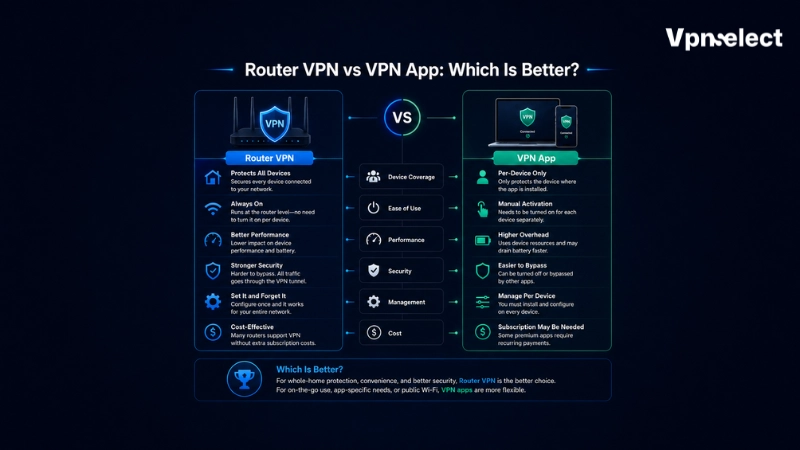
A router VPN is better for whole-home coverage. It protects devices that cannot install VPN apps and reduces device-by-device management.
A VPN app is better if you want fast server switching, split tunneling, or protection on only one or two devices. If you only need protection on one Mac, setting it up directly on that device is usually easier than changing router settings. zThe right choice depends on how many devices you want to protect and how often you need to change VPN locations.
Should You Set Up a VPN on Your Router?
You should set up a VPN on your router if you have many devices, smart TVs, consoles, streaming sticks, or family members sharing the same network. It is also useful if you want always-on VPN protection without opening an app each time.
You may not need it if you only use a VPN on your phone and laptop, change server locations often, or prefer simple app controls. For a deeper comparison of router vpn versus device vpn, consider whether you need whole-network coverage or faster control on individual devices.
Avoid unknown free VPNs for router setup because the provider would handle traffic from your entire network.
Final Thoughts
Learning how to set up VPN on router is worth it if you want whole-home privacy and protection for devices that cannot run VPN apps. Start by checking compatibility, choose the safest setup method, test for IP and DNS leaks, and keep your router settings backed up. For more practical VPN setup guides and privacy tutorials, visit the VPNSelect.
FAQ
Can I install a VPN on any router?
No. Your router must support VPN client mode, compatible firmware, or a dedicated VPN router app.
Does a router VPN protect all devices?
It protects devices connected through that router. Devices using mobile data or another Wi-Fi network are not covered.
Is it better to put a VPN on router or device?
A router VPN is better for whole-network coverage. A device VPN app is better for quick server switching and simpler control.
Will a VPN on router slow down internet?
It can. Router hardware, encryption, VPN protocol, and server distance all affect speed.
Can I use a free VPN on my router?
Usually, no. Most free VPNs have data caps, limited speed, fewer servers, and weaker router support. A trusted paid VPN is usually better for router-level protection.
What protocol should I use: OpenVPN or WireGuard?
WireGuard is usually faster and lighter. OpenVPN is widely supported and reliable. Use the protocol your router and VPN provider support best.
What is the easiest way to learn how to set up VPN on router?
The easiest method is to use a pre-configured VPN router or a router with a dedicated VPN app. Manual setup is better for users who are comfortable changing router settings.
How do I know if my router VPN is working?
Check your public IP address, run a DNS leak test, and confirm multiple devices show the VPN server location.

Leave a comment